Keyboard
GDevelop gives access to all inputs made on the keyboard. This includes conditions to check if a key was pressed or released.
Note
Keyboard conditions do not work with on-screen keyboards on touch devices. For mobile or touchscreen games, use mouse/touch conditions instead.
Any key pressed
The condition is true as long as any key on the keyboard is held down.
Any key released
The condition is true during the frame when any key is released.
Key pressed
The condition remains true as long as the key is held down. Use this for continuous actions like moving a character while a direction key is held.
Key just pressed
The condition is true only during the single frame when the key is first pressed. Use this for one-time actions like jumping or firing a weapon.
Key released
The condition is true during the frame when the selected key is released.
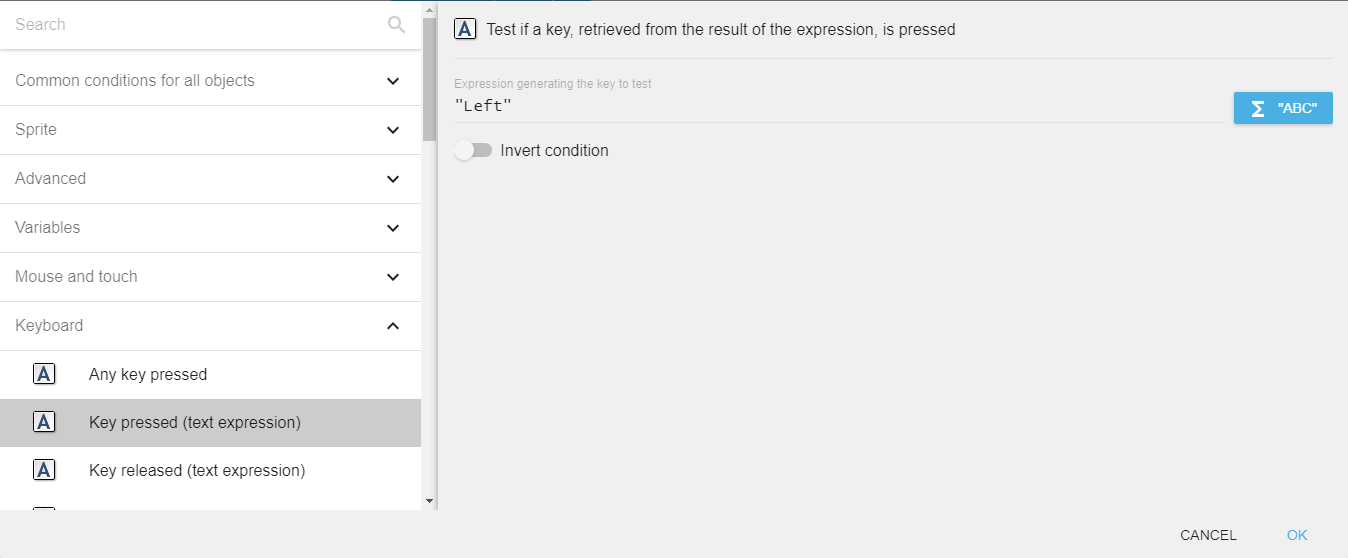
Key pressed (text expression)
To test a key press using this condition, you need to enter the key name in the form of text expression. For example, if you want to check condition for left arrow key press, you need to enter "Left" in the field.
Danger
Make sure that the key name is surrounded by quotes.
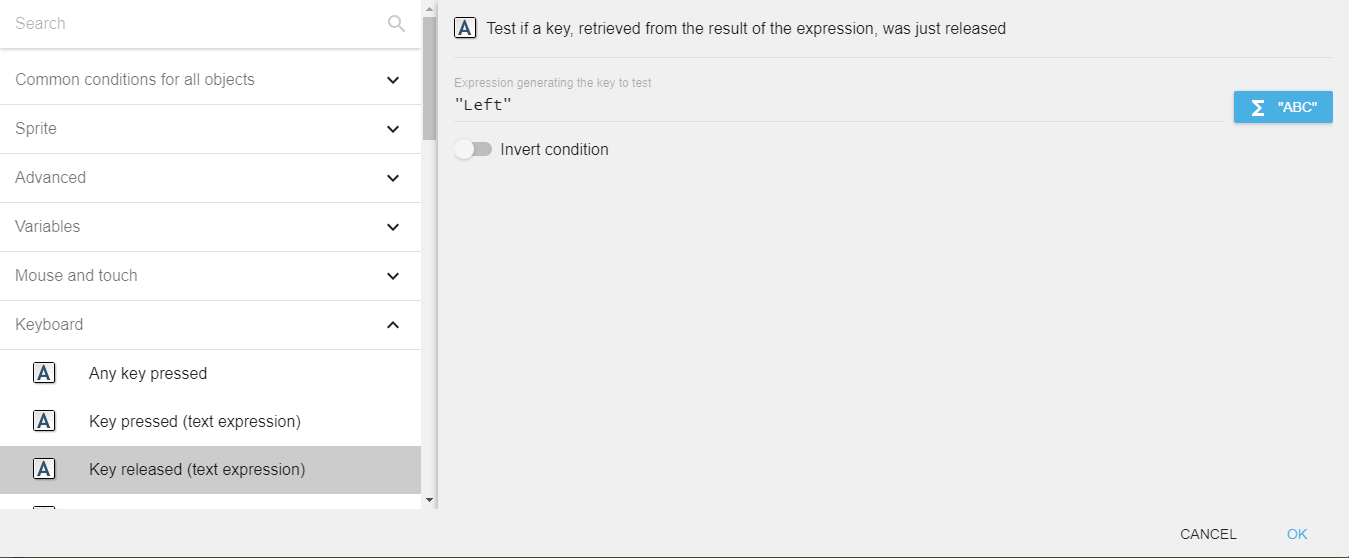
Key released (text expression)
To test a key release using this condition, you need to enter the key name in the form of text expression. For example, if you want to check condition for left arrow key release, you need to enter "Left" in the field.
Last key pressed
"Last key pressed" expression returns the last key press in the form of a string. For example, if the last key press is the left arrow key, the expression will return "Left".
Key names reference
The following strings are accepted by the text-expression conditions and returned by the LastPressedKey() expression:
| Category | Key names |
|---|---|
| Letters | a b c d e f g h i j k l m n o p q r s t u v w x y z |
| Number row | Num0 Num1 Num2 Num3 Num4 Num5 Num6 Num7 Num8 Num9 |
| Numpad digits | Numpad0 … Numpad9 |
| Arrow keys | Left Right Up Down |
| Function keys | F1 … F12 |
| Special keys | Space Return Escape Back Tab Delete Insert Pause Home End PageUp PageDown |
| Modifier keys | LShift RShift LControl RControl LAlt RAlt |
| Symbols | SemiColon Comma Period Quote Slash BackSlash Equal Dash LBracket RBracket Tilde |
| Numpad operators | Add Subtract Multiply Divide |
Tip
Letter keys use lowercase names (a, b, …). Number keys on the main row use the Num prefix (Num1, Num2, …) to distinguish them from numpad keys (Numpad1, Numpad2, …).
Reference
All actions, conditions and expressions are listed in the keyboard reference page.